The risky part of leaving HelpDocs is not downloading a file. It is assuming the export, the replacement renderer and the new routing preserve everything your readers rely on.
Start with a separate draft. Keep HelpDocs live while you inspect full article bodies, images, links, languages and reader permissions in the replacement. Do not switch the public domain merely because the importer reports success.
If you are still choosing a destination, use the six-product HelpDocs alternatives guide. If DocsAlot is already on the shortlist, the direct HelpDocs comparison covers the buying decision. This walkthrough applies even when you choose another platform.
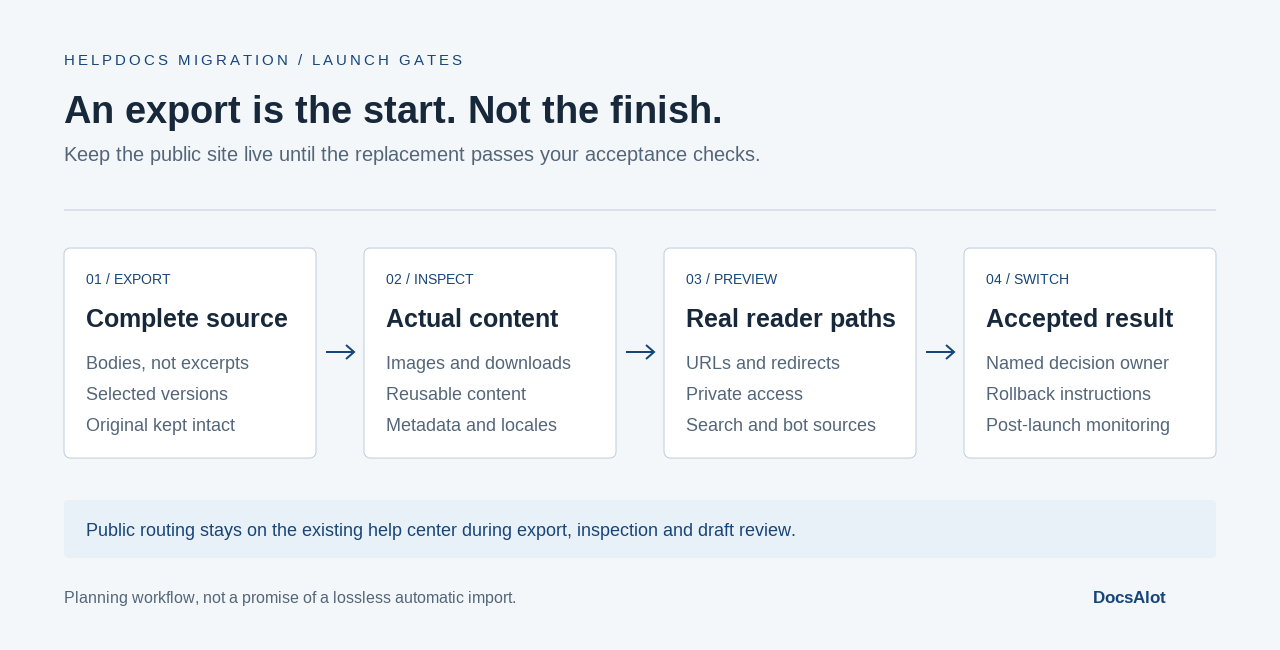
Planning sequence, not a promise of a lossless automatic import.
1. Decide what is moving, and what is staying
List the public site, any internal content, languages, custom domains, embedded help, contact paths and AI-answer sources. Identify the person who owns the content, the person who controls routing and the person authorized to approve the cutover.
| Item | Migration question |
|---|---|
| Public articles | Which current URLs and bodies must remain available? |
| Drafts or working copies | Are these part of the migration or intentionally excluded? |
| Private knowledge | Which readers can access it, and how is access enforced? |
| Images and downloads | Are the files copied, or does the new page still depend on HelpDocs URLs? |
| Languages | Which translated articles, category names and routes must be preserved? |
| Custom presentation | Which templates, CSS, JavaScript and reusable elements need a supported replacement? |
| Contact and chat | Which inbox, widget and human handoff should stay in place? |
| AI or agent access | Which sources and endpoints must be reconnected or refreshed? |
Moving a knowledge base does not inherently require replacing your ticketing system. Keep the inbox and support processes that work, then reconnect them to the new article site.
2. Choose an export that includes the content you need
HelpDocs' official export guide describes CSV and ZIP exports. A crucial detail: the default CSV option contains an excerpt rather than the complete article body. Choose the full-body option when your migration needs full content, and decide explicitly whether unpublished working copies belong in the export.
The same guide describes ZIP exports with Markdown articles and separate YAML metadata in category folders. For a content migration, inspect that archive rather than assuming a spreadsheet of titles or excerpts is a complete backup.
| Export route | When to consider it | What to verify |
|---|---|---|
| CSV with full bodies | Inventory, transformations or a destination that accepts structured rows | Complete content, supported fields and which published or working version was selected |
| ZIP | A structured content snapshot for inspection or file-based import | Articles, category structure, metadata and all required languages |
| API | A controlled custom export or a workflow the standard download does not cover | Credential scope, pagination, status filters, body format and translation handling |
The article-list API reference documents body, format, status and language options. If an engineer uses it, choose read-only access appropriate to the export and keep credentials out of spreadsheets, URLs shared with teammates and migration content.
Do not treat an API result count as proof that you exported everything. Compare the expected public, private, draft and translated content sets separately using the access you intend to migrate.
3. Preserve an original snapshot before transforming it
Keep the original export unchanged and work from a copy. Record its date, selected export options and the content scope the owner expected. Retain it according to your organization's data-handling process.
Create a simple reconciliation sheet:
| Source item | Intended destination | Expected content | Review result |
|---|---|---|---|
| Article ID and old URL | New or preserved public URL | Complete article plus relevant metadata | Not yet checked |
| Translation of that article | Intended locale route | Correct translated body and title | Not yet checked |
| Attachment | Owned or supported asset URL | Downloadable original file | Not yet checked |
| Private article | Restricted destination | Approved reader access only | Not yet checked |
Counts are useful for finding omissions, not for declaring parity. One missing warning or permission condition can matter more than dozens of articles that imported cleanly.
4. Inspect the parts Markdown alone does not settle
A Markdown export can preserve article text without reproducing every HelpDocs-specific behavior in another platform. Review the elements your actual library uses.
Images and downloadable files
Open the imported image URL and identify the host. If it still belongs to a system you plan to retire, decide how the file will remain available. Check links from both the rendered article and the exported source, including downloads buried in tables or callouts.
Do not assume that an archive's presence means every external asset is bundled. Inspect the files you have and verify the destination's asset-handling behavior.
Reusable blocks and variables
Inventory repeated content and variable references before conversion. Decide whether the destination should preserve a reusable block or expand it into ordinary text. After any expansion, give the repeated rule a maintenance owner so future edits do not leave conflicting copies.
For API exports, review the documented options rather than inventing a conversion from a placeholder name. Test the output on a representative article and compare it with the published source.
Custom styling, scripts and embedded widgets
Treat theme code separately from article content. A destination may support a different component model or prohibit a script that ran in the previous site. Replace unsupported behavior deliberately; do not remove it silently because the page otherwise renders.
Choose examples that include a table, a warning, a screenshot, a code block, a download, a deep anchor and any custom element you depend on. The general migration checklist includes a content-pattern acceptance table.
If the exported source compiles locally but the hosted reader fails, compare the content-preparation pipelines as well as the compiler. This MDX preprocessing reproduction demonstrates that failure with synthetic content.
5. Map the old public URLs before changing the domain
Download the URL-map CSV and replace the fictional examples with your actual source and destination paths. Preserve valuable paths where the replacement supports them. When a route must change, map it to the relevant final article, not the homepage.
For example, this is a fictional mapping, not HelpDocs' required URL format:
| Previous URL | Intended outcome | Check |
|---|---|---|
https://help.example.com/article/invite-a-teammate | Keep the path if supported | Correct article returns successfully on the public domain |
https://help.example.com/article/old-invite-guide | Redirect to the current invitation guide | One relevant redirect, no loop, destination works |
https://help.example.com/fr/article/inviter-un-collegue | Preserve or map the French route separately | French article and navigation, not an English fallback |
https://help.example.com/internal/escalation | Preserve restricted access | Anonymous readers cannot retrieve its content |
A custom domain change, a path change and a content rewrite are separate decisions. Combining all three can make a regression harder to diagnose. Google's site-move guidance explains URL mapping, redirects and post-move monitoring.
Check heading anchors as well as article URLs. A link that reaches the right page but the wrong section can still break a support macro or onboarding flow.
6. Test languages and private access as separate workstreams
An English public-page review does not validate a translated private article. Test the languages and reader roles your team actually supports.
For translated content, inspect titles, category labels, navigation, images and links. Record an approved fallback if a translation is intentionally missing; do not quietly route a customer to the wrong language and call it complete.
For private content, configure the destination's access model before adding the material. Verify anonymous and wrong-role access to the rendered page, search results, attachments and any derived Markdown or agent-facing output. Blocking only the navigation link is not an access control.
If a Slack assistant uses the knowledge base, review its channel rules too. A private source link does not prevent a copied answer from being visible to everyone in the channel where it is posted. Test a harmless sample first and use the destination's supported access controls.
7. Reconnect the support and AI paths
Update contact links, help widgets and any approved knowledge-source connector to use the final destination. Keep the support inbox running during the migration test.
HelpDocs itself offers AI and agent-facing features; moving away should not be justified by a claim that it lacks them. Verify which parts your current readers use and what the replacement needs to provide. The HelpDocs pricing and feature matrix lists MCP and AI-readable output alongside its help-center features.
For each dependent bot or agent, ask a saved question, inspect the cited source and check any required human handoff. An updated website does not prove that a separate index or connector has refreshed. Our knowledge-base chatbot guide explains that source boundary.
8. Use explicit launch gates and rollback instructions
Do not switch until the content and routing owners can accept the replacement. At minimum, stop for a private-content exposure, missing critical article, broken certificate, wrong redirect destination or a required support handoff that no longer works.
Record who can restore the previous routing, which configuration they would restore and how edits made after the final export will be recovered. Keep the old site available for the agreed transition window. DNS propagation means a rollback is not always immediate for every reader.
After cutover, review errors promptly and compare search data over completed reporting windows. Follow Google's guidance on maintaining redirects; do not delete the old URL map once the homepage looks correct.
A real destination example, not a promised result
MasonHub moved documentation from HelpDocs to DocsAlot. Its public integration playbook is an example of the published result. That does not establish how long your migration will take or that your custom components will transfer without work.
If you evaluate DocsAlot, start with three representative articles and a private draft. Review the export and any unsupported elements before changing the domain. Compare DocsAlot with HelpDocs, or use the broader shortlist if another workflow is a better fit.
Common questions
Does a HelpDocs CSV always contain the full article?
No. Its official guide distinguishes export options, including an excerpt-only default. Check the body option and inspect a long article before relying on the export for migration.
Will a ZIP export reproduce our theme automatically?
Do not assume so. Article files, metadata, templates, reusable elements and runtime scripts are different concerns. Test them in the destination and agree on replacements for unsupported behavior.
Can we test without taking the current help center offline?
Yes: build and review a separate replacement while HelpDocs remains the public destination. That is an evaluation workflow, not a guarantee that every import is automated or lossless. Complete the source, access and routing checks before cutover.